

Most trafficking mistakes aren't caused by not knowing what to check — they're caused by skipping a step under deadline pressure and assuming it'll be fine. It usually is fine, until the one time a mismatched clickTag or a wrong flight date makes it into a live campaign and the advertiser finds it before you do.
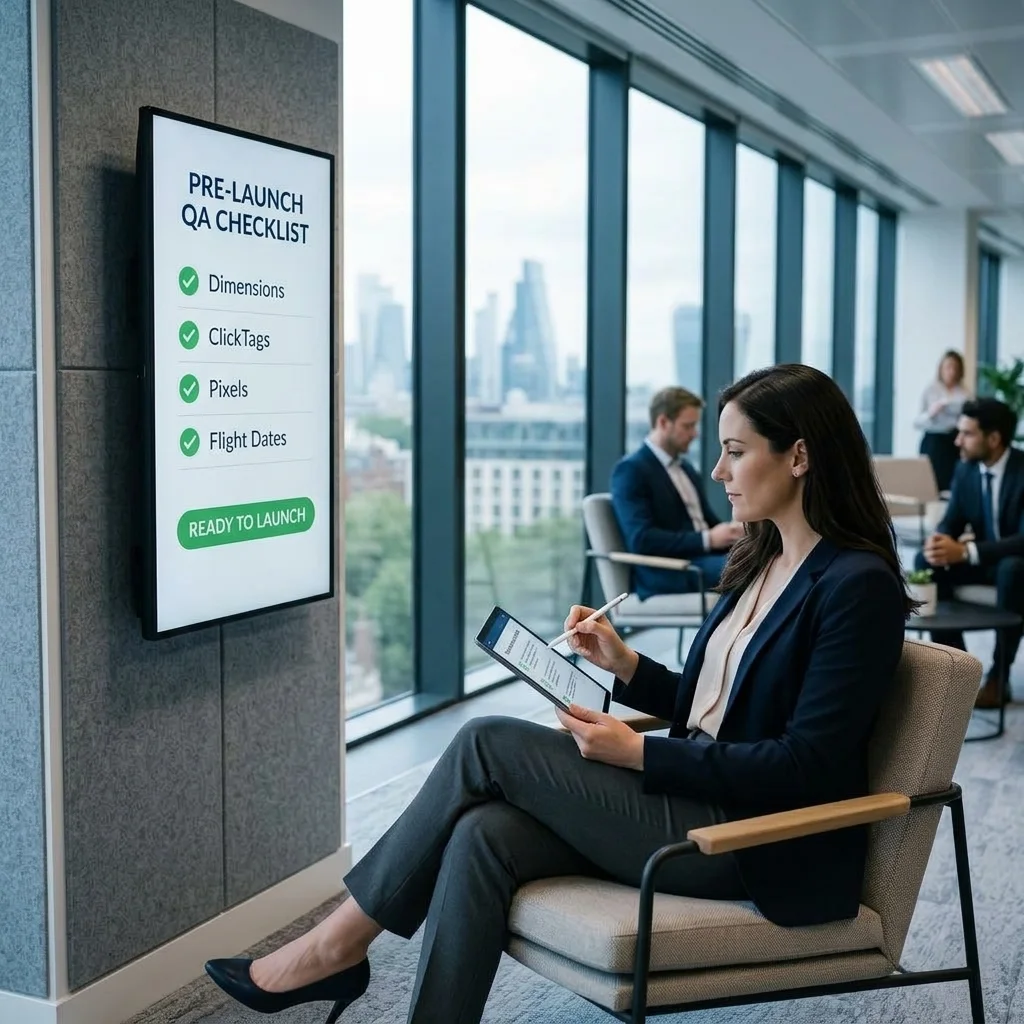
A genuinely usable ad trafficking QA checklist covers creative dimensions and file weight, clickTag verification, third-party pixel firing, flight dates and frequency caps, targeting against the signed IO, and a final preview in a real browser before launch — done in that order, before a single impression serves. None of these steps take more than a few minutes individually, but skipping any one of them is exactly how avoidable errors reach production.
1Creative Dimension and Weight Validation
Before a creative ever gets attached to a line item, confirm its pixel dimensions exactly match the ad unit or placement it's being trafficked against. A 300x250 creative uploaded against a 300x600 ad unit won't serve, and depending on how the line item is set up, it can fail silently — the creative just never wins the auction, and nobody notices until someone asks why a flight is under-delivering three days in.
File weight matters just as much, especially for HTML5 creatives with multiple assets zipped together. Most publishers and ad servers enforce initial and polite load weight limits, and creatives that exceed them either get rejected at upload or, worse, get approved but flagged later by a verification vendor for slow load, which can affect viewability scoring and, in extended cases, the publisher relationship. Check the actual .zip or file size against whatever weight limit applies to the placement — don't assume the design team already confirmed it, because they're usually optimizing for visual quality, not IAB weight guidelines.
For video, confirm the VAST wrapper or file resolves correctly and that companion banners, if the IO calls for them, are attached and sized correctly — a missing companion is a common reason a "video campaign" quietly serves with no companion inventory at all. The IAB Tech Lab's VAST specification is the reference worth bookmarking if you're troubleshooting a wrapper that isn't resolving as expected.
2ClickTag Verification
The clickTag is how the ad server hands a clickthrough URL to the creative at serve time, and it's one of the most common places a creative fails QA. Check three things specifically: that the creative reads the URL from a variable named exactly clickTag (it's case-sensitive — clickTAG or ClickTag won't be recognized the same way, and this exact naming issue trips up creative vendors more often than it should), that the click actually opens in a new window/tab rather than navigating the page itself, and that there's no landing page URL hard-coded into the creative file that bypasses the clickTag entirely.
That last one matters more than it looks. A hard-coded URL means clicks won't be tracked through your ad server, which breaks click reporting and, more importantly, means the advertiser can't change the landing page after launch without a full creative reupload. If the creative uses multiple exits (a background click and a CTA button click, for example), confirm each one is wired to its own clickTag, clickTag1, clickTag2, etc., and that none of them are pointing at a leftover placeholder or staging URL from the build process.
Verify this by actually clicking the creative in preview, in a real browser, and confirming both that a new tab opens and that it lands on the correct URL from the IO — not just that the creative "looks clickable."
3Third-Party Pixel and Tracking Verification
If the IO calls for third-party verification, viewability, or ad server tracking pixels (DoubleVerify, IAS, Sizmek/CM360, or similar), confirm each one actually fires, fires exactly once per impression, and doesn't throw a macro error. Open the browser's developer tools, filter the Network tab by the tracker's domain, and load the creative in preview — you should see the pixel request fire, and the request URL itself is worth reading closely, because unsubstituted macros (a literal [CACHEBUSTER] or [TIMESTAMP] still sitting in the fired URL instead of a real value) are one of the single most common and hardest-to-notice trafficking errors, since the pixel appears to fire "successfully" even when the data it's sending is broken.
Where creatives use measurement SDKs for viewability or invalid traffic detection, confirm the integration matches what the vendor expects for that ad format (in particular, video and native creatives often have different implementation requirements than standard display). The IAB Tech Lab's Open Measurement SDK standard is the reference most verification vendors build against, and it's a useful cross-check if a pixel is firing but a vendor is still reporting no measurement data.
Also check for double-counting: if both the ad server and a third-party ad serving tag are independently loading impression pixels, confirm they're not stacked in a way that inflates the count seen by the buyer's reporting versus yours — a common source of "my numbers don't match your numbers" disputes after launch, which is exactly the kind of discrepancy our ad quality and compliance team gets pulled into after the fact, when it's far more expensive to untangle than it would have been to catch in QA.
4Flight Dates and Frequency Cap Double-Checks
Flight date errors are quietly expensive because they don't fail loudly — the campaign just runs, on the wrong schedule, until someone reconciles delivery against the IO. Confirm the start and end date and time in the ad server match the IO exactly, including time zone. A campaign trafficked in the ad server's default time zone when the IO was written in the client's local time zone can go live hours early or end hours late, which matters most on time-sensitive launches (product drops, event promotions) where early delivery burns impressions against an audience that hasn't been told about the offer yet.
Frequency caps deserve the same scrutiny: confirm the cap unit (impressions per user per day, week, or lifetime of the campaign) and the cap level match what's in the IO, not what a similar past campaign used. It's an easy field to leave on a default or carry over from a duplicated line item, and a cap that's too loose burns through budget on repeat impressions to the same users, while a cap that's too tight under-delivers and creates a make-good conversation later. Also confirm whether the cap should apply at the line item level or roll up across multiple line items in the same campaign — these behave differently and it's a frequent source of confusion when a campaign has more than one creative rotation.
5Targeting Verification Against the IO
Pull up the signed IO next to the line item and go through every targeting dimension line by line: geography, device and OS, browser, inventory (specific ad units or placements purchased), daypart, and any audience segment or key-value targeting. It's tempting to trust that targeting copied over correctly from a proposal or a previous flight, but that's precisely how mismatches survive — a geography that was narrowed for a test flight and never widened back for the full campaign, or an inventory exclusion left in place from an unrelated brand-safety request that's now blocking placements the client actually paid for.
Pay particular attention to exclusions, since they're the easiest targeting element to forget you set. A competitive exclusion or a blocked key-value from months ago can silently prevent a new campaign from reaching inventory it should be eligible for, and because exclusions don't show up as an error, the campaign just under-delivers without an obvious cause. This full-IO cross-check is a core part of what our campaign management and trafficking team runs on every launch, precisely because it catches the mismatches that are invisible once the campaign is live and only visible in a side-by-side read of the source document.
6Common Mistakes That Make It to Launch
- Trusting "duplicate line item" without re-verifying every field. Copying a previous flight is efficient, but dates, caps, and targeting all need to be re-checked, not assumed carried over correctly.
- QA'ing the creative in isolation instead of on the live page. A creative that previews cleanly in an isolated iframe can still overlap page content, get clipped by a container, or trigger a layout shift once it's actually rendering alongside the rest of the page.
- Skipping the pixel check because "it's the same vendor as last time." Macro substitution and firing behavior can differ by ad format and by the specific tag provided for that campaign, even from a vendor you've worked with before.
- Treating QA as a single person's job with no second check. The trafficker who built the line item is the person least likely to spot their own mistake, because they're checking against what they intended, not against the IO with fresh eyes.
- Launching without confirming supply path authorization. For programmatic-adjacent trafficking, an inventory or seller not properly reflected in your ads.txt can cause demand to reject the request entirely, which looks identical to a trafficking error in delivery reports.
If your team keeps catching these issues after launch instead of before, the fix usually isn't more attention — it's a written, shared checklist and a second set of eyes built into the workflow, which is exactly what our QA and technical support service exists to run consistently. If you're regularly firefighting post-launch corrections, a free ad-stack audit can identify whether the gap is process, training, or a specific recurring platform quirk.
7The Final Preview: The Step That Catches Everything Else
Before the line item goes live, preview it — not in a generic ad server preview panel alone, but on an actual page URL, in an actual browser, on both desktop and mobile viewport widths. Most ad servers, including Google Ad Manager, support previewing a creative on-site by entering the target page's URL directly in the creative's preview tab, which renders it in the real page context rather than an isolated frame — see Google's guide to previewing a creative for the exact steps.
In that final preview, walk through everything you checked individually one more time, together, in context: does the creative render at the right size without being clipped, does the click open the correct URL, does the browser console show any errors, and do the tracking pixels fire when you refresh the page. This step catches interaction effects that individual checks miss — a clickTag that works fine alone but gets intercepted by a competing click handler elsewhere on the page, for instance, or a pixel that fires in isolation but gets blocked by the page's own content security policy in production.
It's the last five minutes before launch, and it's consistently the five minutes that prevents the most expensive kind of QA failure: the one an advertiser notices before you do.